
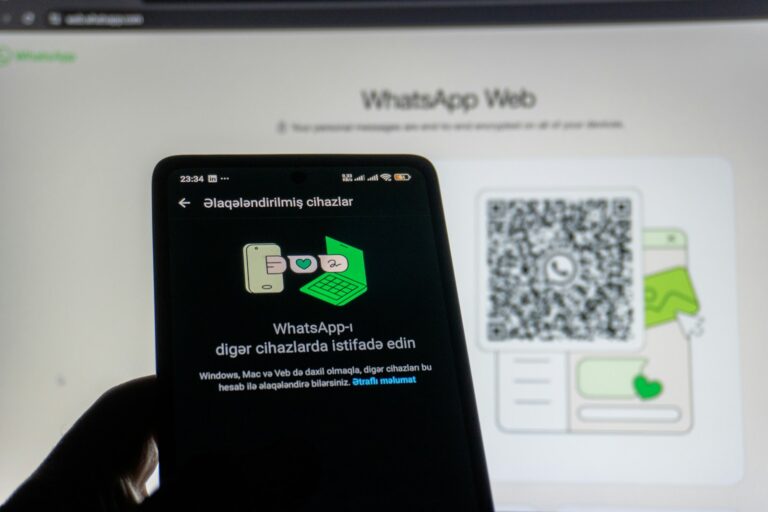

Using a whatsapp web login allows you to mirror your mobile conversations onto a computer screen, providing a seamless way to message, share files, and manage groups without touching your phone. It functions through a secure sync between your mobile app and a web browser like Chrome or Safari, ensuring all messages remain end-to-end encrypted while you enjoy the comfort of a full-sized keyboard.
Getting Started with WhatsApp Web Login
If you spend most of your day in front of a laptop, constantly reaching for your phone to reply to messages can break your focus. The whatsapp web login process is designed to bridge that gap. By connecting your account to a browser, you can type faster, view high-resolution photos on a larger display, and drag-and-drop documents directly into your chats.
The beauty of this system is that it doesn’t require a separate account. Everything stays in sync. If you read a message on your computer, it shows as read on your phone. This synchronization is perfect for professionals who need to maintain quick response times or for anyone who prefers the tactile feel of a physical keyboard over a glass screen.
How to Link Your Device
-
Open your preferred web browser on your computer and navigate to the official [suspicious link removed] portal.
-
Pick up your smartphone and open the WhatsApp application.
-
Access the settings menu:
-
On Android: Tap the three vertical dots in the top-right corner.
-
On iPhone: Tap the Settings icon at the bottom-right of the screen.
-
-
Select Linked Devices from the menu options.
-
Tap the Link a Device button. You may be asked to unlock your phone using your PIN, fingerprint, or FaceID for security.
-
Point your phone camera at the QR code displayed on your computer screen.
-
Once the scan is successful, your chats will populate on the browser window instantly.
Why You Should Use WhatsApp Web
While the mobile app is great for on-the-go communication, the whatsapp web login offers several advantages for power users.
Benefits for Productivity
-
Faster Typing: Physical keyboards allow for much higher words-per-minute than thumb-typing.
-
File Sharing: Sending a PDF or a zip folder from your hard drive is as simple as dragging it into the chat window.
-
Desktop Notifications: Stay updated with subtle pop-ups while you work in other tabs.
-
Multitasking: You can switch between your work emails and social chats without switching devices.
Quick Comparison: Web vs. Desktop App
| Feature | WhatsApp Web (Browser) | WhatsApp Desktop (App) |
| Installation | Not required | Required |
| Audio/Video Calls | Limited support | Full support |
| Keyboard Shortcuts | Basic | Advanced |
| System Resources | Depends on browser | Standalone usage |
| Updates | Automatic | Requires app update |
Staying Safe During Your Session
Security is a common concern when using any browser-based tool. Because your whatsapp web login contains your private conversations, it is vital to follow best practices to keep your data safe.
One of the most important habits is to log out of sessions on computers that aren’t yours. If you use a library computer or a friend’s laptop, don’t just close the tab. Closing the tab does not end the session, and the next person to visit the site might see your messages. You can check which devices are currently active by looking at the “Linked Devices” section on your phone at any time.
Pro Tip: If you think you left your account logged in on a public computer, you can remotely log out of all web sessions directly from your phone’s settings.
Common Challenges and Solutions
Sometimes, you might run into a snag while trying to initiate a whatsapp web login. Most of these issues are related to connectivity or browser compatibility.
Troubleshooting Steps
-
QR Code Not Loading: This is usually due to a poor internet connection. Try refreshing the page or checking your Wi-Fi signal.
-
Phone Not Connecting: Even though the web version works independently now, your phone occasionally needs to be online to re-sync.
-
Blurry QR Scan: Ensure your phone’s camera lens is clean. If it still won’t focus, try increasing the brightness on your computer monitor.
-
Outdated Browser: WhatsApp supports major browsers like Chrome, Firefox, Edge, and Safari. If you are using an old version, the login page may not load correctly. You can find more detailed troubleshooting on the WhatsApp Help Center.
Common Mistakes to Avoid
-
Using Unofficial Sites: Only ever enter your details at web.whatsapp.com. Never use third-party “WhatsApp Web” clones, as they may steal your data.
-
Staying Logged In on Public Wi-Fi: Avoid accessing sensitive chats on open, unencrypted networks.
-
Forgetting to Log Out: Always click the menu icon (three dots) above your chat list and select Log out when finished on a shared device.
Pros and Cons of Using WhatsApp on the Web
Pros:
-
Extremely easy to set up with no software to install.
-
Allows you to use one WhatsApp account on up to four linked devices simultaneously.
-
Perfect for copy-pasting links and text from your computer.
-
Supports dark mode to reduce eye strain during late-night work.
Cons:
-
Native video and audio calling are often better handled by the desktop app.
-
Requires a stable internet connection on both the computer and occasionally the phone.
-
You cannot add new contacts directly through the web interface.
Frequently Asked Questions
Can I use WhatsApp Web without my phone being nearby?
Yes. Thanks to the multi-device feature, once you have completed the whatsapp web login, your computer can send and receive messages even if your phone is turned off or has no internet connection. However, if you don’t use your phone for over 14 days, your linked devices will be automatically logged out for security.
Is it possible to have two WhatsApp accounts open on one computer?
In a standard browser window, you can only log into one account. To use a second account, you can open an “Incognito” or “Private” window and perform another whatsapp web login there, or use a completely different browser.
Why do my messages take a long time to sync?
Slow syncing is usually caused by a large chat history or a weak internet connection. If the “Organizing messages” bar stays on the screen for too long, try clearing your browser cache or restarting the browser.
How do I enable Dark Mode on the web?
Click on the three dots (menu) at the top of your chat list, go to Settings, then Theme. You can choose between Light, Dark, or System Default.
Can I see Status updates on WhatsApp Web?
Yes, there is a circular icon (Status icon) next to your profile picture at the top of the chat list. Clicking this allows you to view the status updates of your contacts just like you would on your phone.

0 Comments