


Losing important photos from your Windows PC can be distressing, especially if they hold personal memories, professional images, or important project files. Every time your photo is deleted on a Windows PC, it goes to the Recycle Bin and remains there until it is permanently erased. However, sometimes your photos get permanently deleted, bypassing the Recycle Bin.
The good news is that even after emptying the Recycle Bin, deleted photos can often be recovered—provided you act quickly and use the correct recovery method. In this guide, we’ll explain how photo deletion works and explore the most effective ways to recover permanently deleted photos. Let’s get started!
What Happens When You Delete Photos on Windows?
Every time a photo is deleted on your Windows PC, it goes to the Recycle Bin folder, where it stays until you permanently remove it. However, if you delete photos using the Shift + Delete keys, the photo bypasses the Recycle Bin and is marked as permanently deleted right away.
Even then, the file is not immediately erased from your system. Windows simply labels the storage space it occupies as available for new data. The actual photo data remains on the drive for a limited time and can often be recovered—until new files overwrite that space, making recovery far more difficult or even impossible.
Quick Steps to Recover Deleted Photos from the Recycle Bin
If your deleted photo is still in the Recycle Bin folder, recovery is very simple. Simply follow the steps below to recover your photos directly from the Recycle Bin and return them to their original location:
- Firstly, double-click the Recycle Bin icon on your desktop.
- Browse through deleted photos and select the one you need to restore.
- Right-click the selected photo and choose Restore.
- The photos will return to their original folder location.
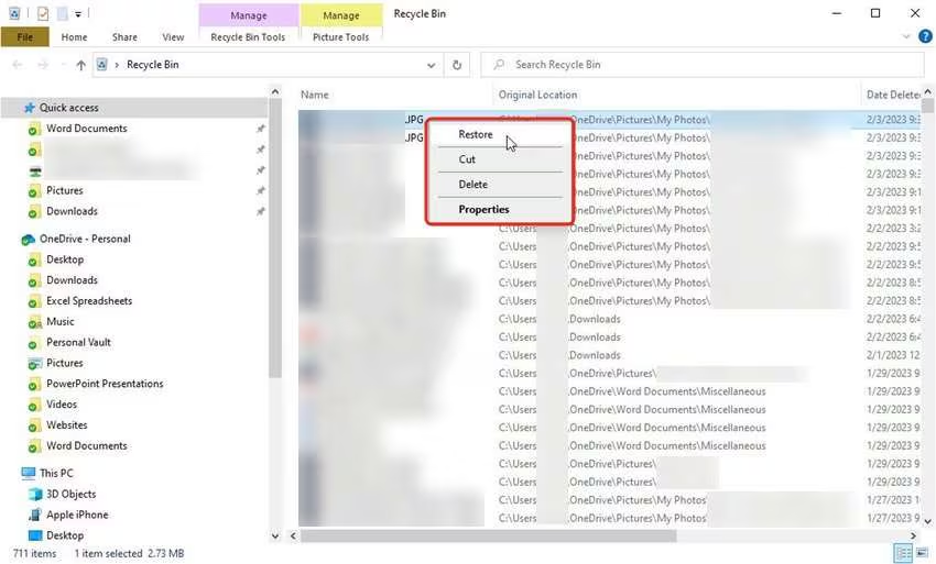
You can also drag and drop the selected photos from the Recycle Bin to a folder of your choice.
How to Recover Photos from Emptied Recycle Bin?
If the Recycle Bin has been emptied, the photos are not immediately erased from your system. You can try the following methods for photo recovery:
Method 01: Recover Using File History Backups
Windows provides an in-built File History backup utility, which, when synced on your PC, creates an automatic backup of your files, including your photos. Follow the below steps to recover photos using File History backup in Windows:
- Press the Windows + I keys to launch the Settings app, go to Update & Security > Backup.

- Now, click More options under Back up using File History.
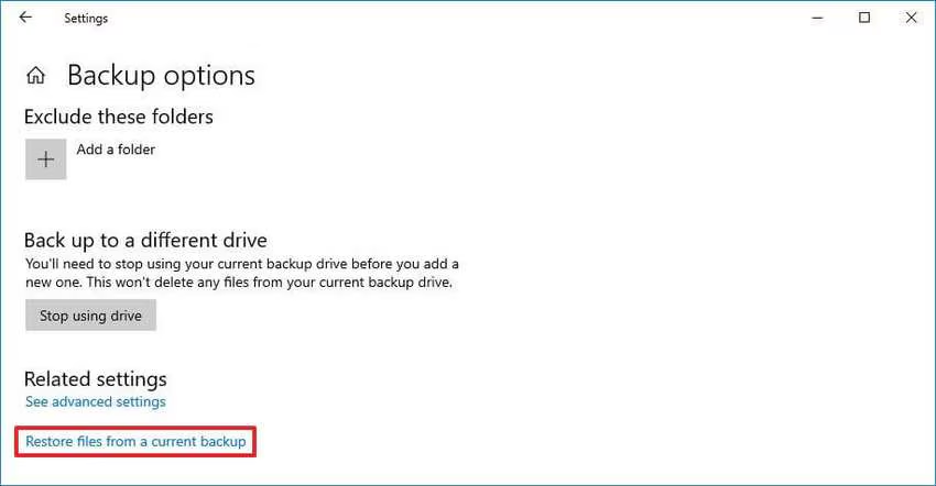
- Tap “Restore files from a current backup”.
- Browse through the backup folder containing your deleted photos, select them and click the green Restore button
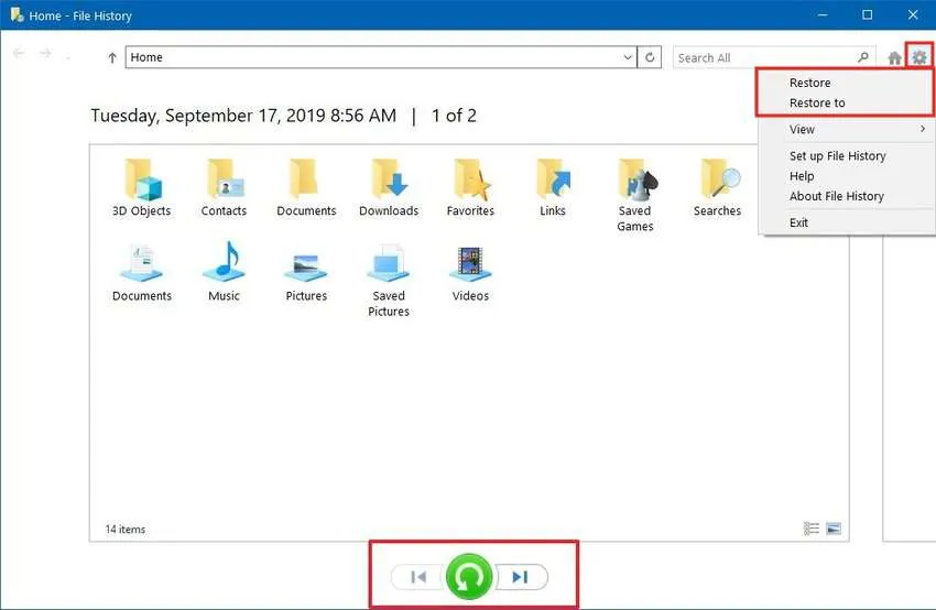
Note: If you want to save them to a different location, right-click the Restore button and choose Restore to, then select a new folder.
Method 02: Recover Photos Using Cloud Backups
If you’re using any cloud service (OneDrive, Google Drive, iCloud, etc.) to back up your photos, you might find your deleted photos there. Let’s explore some cloud backup options in detail:
1: OneDrive Backup
Microsoft OneDrive keeps its own Recycle Bin separate from your Windows Recycle Bin. Here are the steps to check the OneDrive Recycle Bin:
- Open a web browser and go to onedrive.com.
- Sign in to your account.
- Click on “Recycle bin” in the left sidebar, then locate your deleted files.
- Select the files you want and click “Restore”.
2: iCloud Backup
If your photos were synced with iCloud Photos, you can easily recover deleted images within the retention period (usually 30 days). Here’s how:
- Go to iCloud.com and sign in with your Apple ID.
- Click Photos, then go to the Recently Deleted album from the sidebar.
- Select the photo(s) you want to restore and click Recover.
The photos will return to your main Photos library and sync back to your devices.
Method 03: Recover Deleted Photos Using Photo Recovery Software
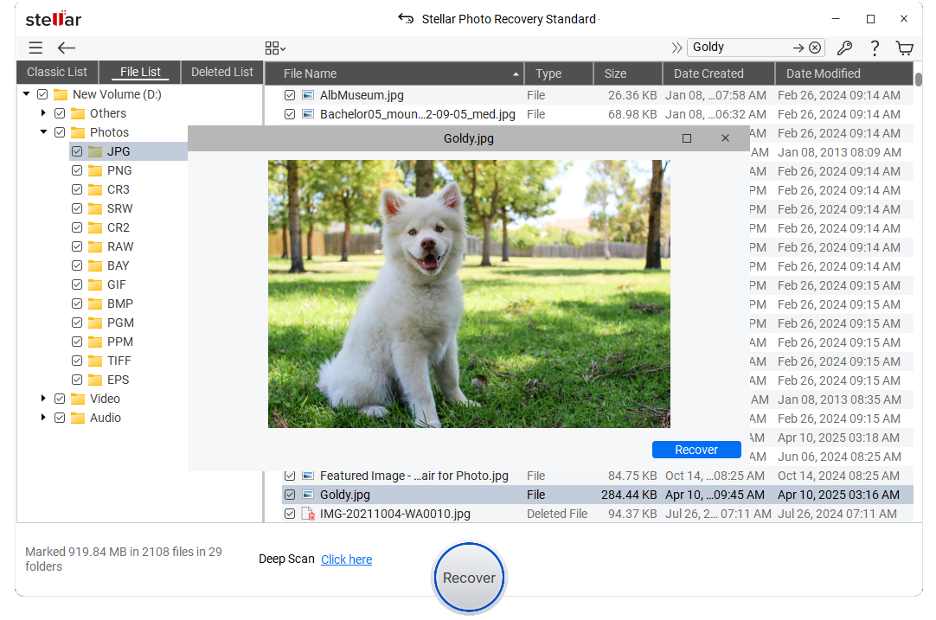
Instances may happen when you don’t have an adequate backup of your deleted photos. If you ever find such instances, don’t lose hope. Some professional photo recovery software, such as Stellar Photo Recovery, can help you restore your photos lost due to accidental deletion, emptied Recycle Bin, formatting, system error, or many other reasons. It offers a user-interface allowing you to restore deleted photos in a few simple clicks.
The Stellar Photo Recovery software is known for its powerful scanning engine and broad compatibility with multiple internal or external storage devices. You can use this all-in-one photo recovery software to restore your deleted photos from SD cards, USB drives, external hard drives and other storage media. In addition to photos, it also supports the recovery of deleted audio and video files across a wide range of file formats, making it a versatile tool for multimedia data restoration.
Here’s how to recover deleted photos from Windows PC using this amazing photo recovery software:
Step 1: Download the Stellar Photo Recovery software from its official website on your Windows PC. Install it on a different drive or external storage device (not the drive where photos were deleted).
Step 2: Launch the software and from the homepage, select Photos (or the type of data you need to restore) and click Next.
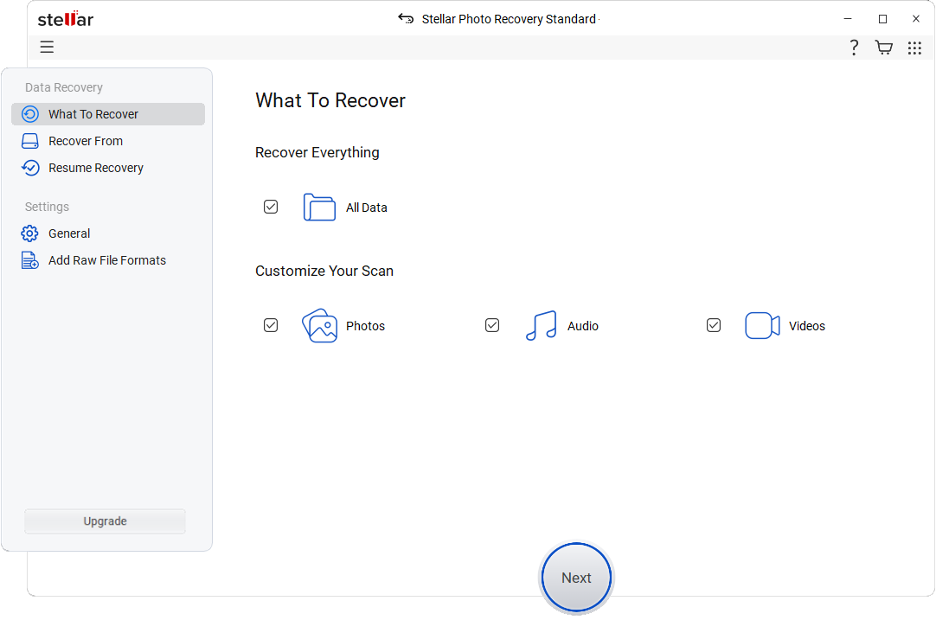
Step 3: Choose the drive where the deleted photos were originally stored (for example, Local Disk C:, D:, or external drive) and click Scan to initiate the scanning process.

Step 4: Once the scan completes, preview the recoverable files. If you don’t find the required photos, enable the Deep Scan option. Choose the photos you want to restore and click Recover to save restored photos to a safe location on your PC.
Can Photos Be Recovered After Permanent Deletion?
Yes, in most cases, it is possible to restore deleted photos even if they are permanently erased – but success depends on several factors, including:
- How much time has passed since your photo was deleted?
- Whether new data has overwritten the space.
- Type of storage device, i.e., HDD has a higher success rate, but recovery is complex on SSDs.
- Recovery also depends on whether the drive uses NTFS, FAT32, exFAT, or another file system.
- If you’ve backup (File History, cloud storage, external drives) of deleted photos, recovery becomes much easier and more reliable.
The sooner you begin recovery, the higher the chances of success.
Wrapping Up
Accidental deletion of photos may put you in trouble, but it doesn’t always mean permanent loss. In many cases, recovery is possible using built-in Windows features or previously created backups. However, if these fail, you can use professional photo recovery software such as Stellar Photo Recovery to get your deleted photos back. The key is to act immediately and avoid overwriting the deleted data. Whether your photos were removed accidentally, deleted permanently, or lost due to system issues, following the right recovery steps can help you retrieve them safely.

0 Comments